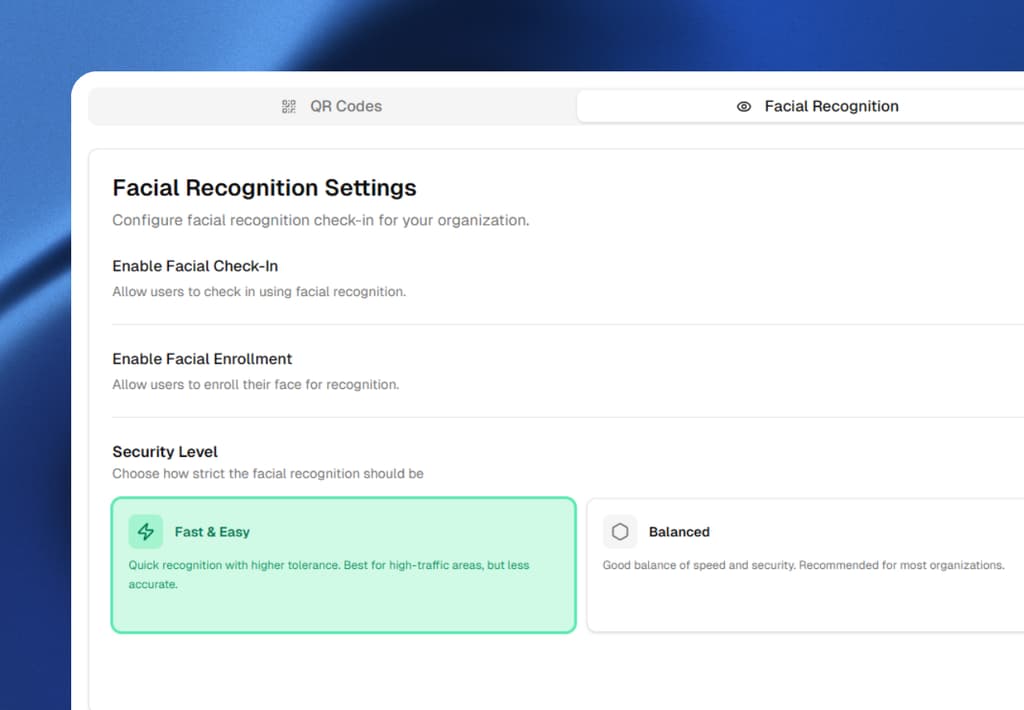
Face check-in matches a worker's face at check-in with the one they set up. It helps stop one person checking in for another with a shared phone, PIN or login.
What face check-in is
At the start of a shift, the worker looks at their phone's camera in the Sharkforce app. Sharkforce matches the face with the one that person set up.
If the match is close enough, the check-in counts. Your workspace sets how close the match must be.
Why teams use it
One person, one check-in
A PIN, a badge or a login can be handed to someone else. A face match makes it much harder to check in as someone else.
Less chasing
Managers spend less time asking who really checked in on Tuesday. The record is there, beside the shift.
Fewer typing mistakes
Hours come from the check-in itself, not from a sheet someone types up later. Approved hours can then go to payroll.
What it checks, and what it doesn't
Face check-in answers one question: does this face match the one this person set up? It doesn't tell you where they are, or whether the work got done.
For the shifts that matter most, pair it with location check-in. Then the face must match, and the phone must be at the site.
- Location check-in shows the phone is inside the site zone. It is included from Pro.
- QR check-in records a scan of a code you print or show on a screen. Add location where the scan must happen on site. It works on every plan.
- AI task validation checks a task's photo against what the task asked for. It is included from Pro.
Face and location together show whose face matched, and where. See how location check-in works.
When a match is hard
Matches get harder in poor light, at sharp angles, or when part of the face is covered. Ask workers to face the camera in good light.
Start with a clear, well-lit face on file. A blurry one makes every later check-in harder.
Agree a fallback before you start, so one failed match doesn't lock anyone out. Decide who a worker calls, and how a manager records that shift.
Privacy comes first
- Tell people what you collect, why, and for how long, before any face goes on file.
- Ask for consent, and offer another way to check in where the law requires it.
- Use face data for attendance only.
- Use roles to limit who in your team can change face check-in settings.
- Check the rules on biometric data where you operate, and take legal advice before you start.
Data is encrypted in transit (TLS) and at rest by our infrastructure providers. Selected sensitive fields get extra encryption in the app. Each workspace's data is kept apart.
A fair rollout
- 1Start with one site. See what light and angles you deal with there.
- 2Explain the why. Your check-in is matched to your face. That makes it much harder for anyone else to check in as you.
- 3Put faces on file at onboarding. Do a one-time round for people already on the team.
- 4Run it beside your old method for two weeks. Compare the records before you switch.
- 5Write the fallback down. Everyone should know what to do when a match fails.
Face check-in is included from the Business plan. See how face check-in works or compare plans.
This guide is general information, not legal advice.