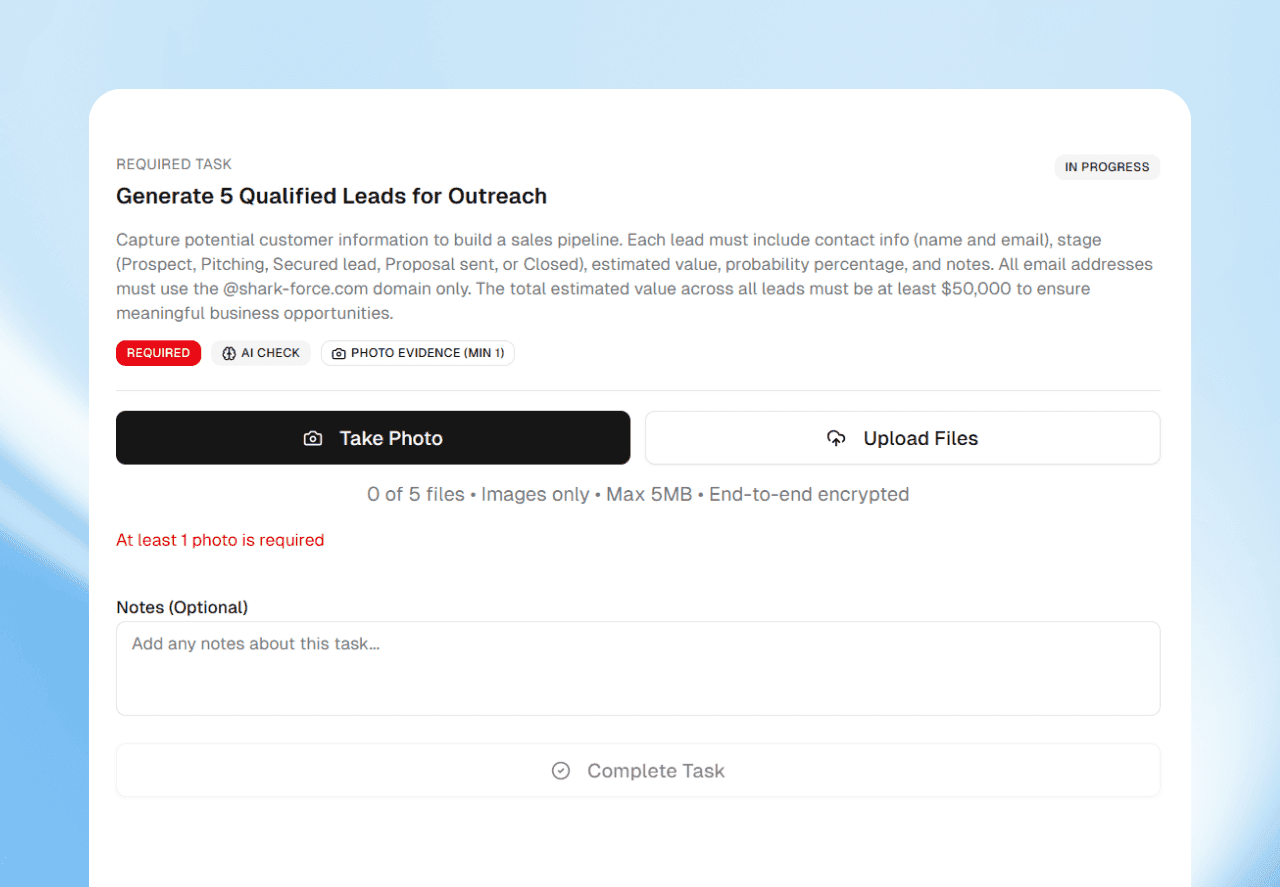
In Sharkforce, any task in a shift can ask for a photo. When the worker taps Verify & Complete, AI reads the photo against what the step asks for. It approves the photo, or sends it back with a reason.
The trouble with waiting
A worker finishes a task, sends a photo, and moves on. Days later they hear it wasn't good enough. By then they have left the site.
Meanwhile the photos pile up for a manager. Each one gets judged a little differently, depending on who looks and how tired they are.
How it works, step by step
- 1Ask for a photo. In the Shift Builder, turn on photo proof for any task. The shelves, the till and the shutter are good examples.
- 2Write what the photo should show. The step's instructions are what the AI checks against, so be specific.
- 3The worker takes the photo. They finish the step, take the photo on their phone, and tap Verify & Complete.
- 4The AI gives a verdict. The answer is Approved, Needs improvement or Not approved, with a score and what it saw.
- 5The worker fixes it on the spot. A sent-back photo says what to change, such as more light or a wider shot.
The step counts once its photo passes. The worker doesn't have to guess, and doesn't have to wait for you.
Repeat photos are caught
A photo that repeats one sent in your workspace in the last 30 days is refused. The worker takes a new one.
What you see as the manager
Open the shift's record in your dashboard. Each step shows its photos, the AI score and the verdict, beside the shift's hours.
You no longer need to judge every photo. You can open any step's photos and verdict when you want to.
One standard on every shift
The AI checks every photo against the same task text, whoever sends it and whenever. That holds at every site and on every shift.
Your team learns what good looks like from the feedback itself.
Which plan you need
AI task validation starts on the Pro plan. The Free plan includes QR check-in and the app, without AI task validation.
See AI task validation, or read our guide to checking work with photos.